Showing posts with label software. Show all posts

Tuesday, 30 April 2013

Poetry Foundation Poetry App for Android and iOS

Wanting to read poetry shouldn't just be confined to April. There are times when you need a bit of Auden or a touch of Anna Marie Hong. The good news is that Smartphone and table users can download the free Poetry App from the Poetry Foundation.


http://www.poetryfoundation.org/mobile


You can sort by title, the first line in the poem or type in the name of the poet. Some of the poetry is in audio format so you really could listen while you work. And because we live in sociable times you could share a poem you really like via Facebook and Twitter.

I installed the app on an inexpensive tablet. It worked fine. I was able to select what I wanted to read. I did have trouble playing back the audio poems. I'm 99% sure my device is the problem but I just wanted to put it out their that there could be an issue.

So if you have wanted a way to read more Naruda or Christina Rossetti then this app could work for you.


Friday, 22 March 2013

RSS Reader Alternatives for Library Students

I think most people are starting to allow the weeping to cease. For days now people have been in a ruckus about the closing of Google Reader.

Google Reader allows you to subscribe to an RSS feed so that you could have the web site or blog delivered to the reader instead of you remembering to go to the site. It is one of the ways people keep up with a specific block of interest. There are users that have thousands of links to web sites in their readers.

I will tell you as an information junkie this hit hard. Yes, I have bookmarks but using Google Reader helps me to to stay on top of the sites that I need to visit on a daily or weekly basis. I keep my RSS subscriptions private. I love sharing a good link on Twitter but you don't need to know every web site and blog I visit. I have this thing about privacy. I'm in favor of it.

Mind you, I'm not ashamed of my links. You should visit Too Busy Thinking About Comics but there are some places that you might not want a potential future employer to know that.

Wait, this is a library blog and if your future library doesn't understand about comic books and graphic novels then you don't necessarily want to work for them anyway.

I digress.

When news broke of Google's decision to close the site July 1, 2013 there was much grieving and gnashing of the teeth.  Out of misery comes opportunity. There are replacement RSS readers ready to welcome you but first you gotta get your feeds out of Google Reader.


Nick Barber from IDG Network News and Tech Tips has a video on how to extract your feeds from Google Reader.

After you get them extracted then what?

Well, you have options. But before you begin you will need to do some research. Many of the RSS readers use Google Reader as a back end synchronization support. Without Google Reader the software either has to create a new back end of support or it ain't gonna work after July 1st.

You will need to make sure there is independent support for your feeds.

Clouds, Web and Social Media Based Readers


There is something to be said for web based RSS readers. You can use them with smartphone and tablets, you have universal access no matter where you go and for those that are truly social media beings of habit you can share them with your connections.

Feedly works with both Firefox and Chrome browsers. When it senses that a web page or blog has a feed link it will allow you to add that page as a feed. Feedly then displays the pages in a visual magazine like format. Feedly is also available for Android and iOS devices.  Feedly has a number of sharing options with all of the major social media outlets.

Flipboard is very popular and allows you to connect and share your finds and subscription with your social networks.

Pulse is another visual reader that works on the desktop, Apple iOS and Andriod platforms. In addition to added RSS feeds you can pull content from their catalog. You also can sync your feeds across other devices.

Desktop RSS Readers


I have been testing out Feedreader. So far so good. It is easy to add the subscription feed links. I like that I can quickly spot what is incoming. I like that I can type in a search term to see if it pops up in any of my feeds.  I can minimize it and have pop-up show me incoming or shut it down when I need to get work done. There is a version for on-line use as well.

RSSOwl is a Java based reader. Java is a programing language that may or may not be installed on your system. It has an e-mail like interface that you might like.

The e-mail client Thunderbird has a very good RSS reader function. I know because I also use that as an additional reader software. For RSS only I don't think it would be worth it to install but should you happen to need an alternative e-mail program and RSS reader this is a keeper.

Other reader choices are:

Please remember to check if the RSS software or App uses Google Reader as a back end synchronize.

Which is why I can't recommend FeedDemon because it is shutting down. It will work after July 1 if you disable the Google synchronization but it will no longer be supported.


Monday, 7 September 2009

School Library Without Books - A Commentary

First, here is the news story from Boston.com on the Cushing Academy decision. The school gave away the existing library They are planning to replace the traditional paper books with electronic book readers by Amazon and Sony.

Many people have strong opinions about this transition. At the time of this writing there were 440 comments about this news story on the website. There is also a CNN write up about the transition from paper to electronic books. The tech community is also little buzzed about this decision. Check out the comments from the tech blog, Engadget.

The librarian and book bloggers communities are extremely concerned over this switch in book media.

Brian's Book Blog:
Okay, I feel better now. I just don’t understand how they feel that this is a good idea. A print book won’t shut down if it looses battery power. A print book doesn’t get recalled from your shelf like an eBook might from your Kindle.
The Luscious Librarian:
Now, I'm all for technology, especially when you're referring to information that is updated on a daily basis like reference information found in encyclopedias, but that kind of information is not free and requires a subscription. It's also easily controlled or changed depending on who is reviewing and posting the information, the interest groups the information supports or denounces.
Lisa Gold:

This is stupid on so many levels that I forced myself to wait a full day before blogging about it so I wouldn’t rant incoherently. Let me just pose a few questions:

  • Did the librarians of Cushing Academy try to explain to their headmaster that only a small percentage of works are available in digital form, and that most of those aren’t free?
  • Before discarding their 20,000 printed books, did they consider checking to see which ones aren’t available in digital form and keeping those? (In my experience many of the best reference works only exist in print form.)
  • Did they think about the fact that even if the library pays to subscribe to subscription databases and encourages the use of free public domain works (Google Books, Project Gutenberg, etc.), that still means students won’t have access to the vast majority of works published after 1922 and still under copyright?

My Thoughts But More Feelings

I love books. I love the smell of them. I love to hold them and goodness knows I have a few in my bed waiting for me to catch up.

So hearing about a school voluntarily dismantling the library has me at near tears. I don't care if they are rich kids. Every child and teenager needs access to books. I want them to have access to Judy Blume, Malcolm X, and any science fiction book. I'd even put up a scuffle for the sports books and I don't care about sports.

Why? Because books saved my life as a kid. Seriously. Everything from Go Dog Go to Encyclopedia Brown to why do people hate each other? I know how powerful the right book can be in the hands of a person in need.

I would walk the stacks just looking for that book that would call out to me. And if you don't know what the hell I'm talking about then why are you in the library program or reading this post?

This is personal! (and my opinion does not reflect upon PCC or Shatford Library.)

Yes, I like tech and gadgets. Always have and always will. But books are my home. Paper books. When I need to escape and I have no money where do I turn to? A book. When I am searching a past that I have no information on where do I look? I can find an out of print book that has what I need. That out of print book is not going to be in a Amazon Kindle or Sony Reader.

My connection to the pulp is similar to BookishGal on her post about keeping books. I can't throw them out. I pick up stray books if I think they are at risk for disposal.

So to read of someone who is a so-called educator who is proud that they discarded 20,000 books for a $12,000 coffee machine I get teary. And angry. And sad.

Look, I knew the transition was coming. I tried to tell people. But is should be a transition, not a dad gummed purge. This is not the last of it. The state of California is planning to use e-textbooks and will phase them in over time. Textbook publishers are getting read to produce custom content textbooks in electronic form.

Textbooks in electronic form have a places in schools. There is no stopping that process. But literature, philosophy and boatloads of history books cannot effectively be transferred to electronic devices at this time.

This is a loss when even one school library does it. It must not become a trend. If this summer has taught us anything it is that there is no pride in being willfully stupid. It is not a badge of honor.

We can do better than this. We must be informed and, when given the opportunity, speak up.

Tuesday, 4 August 2009

Out In the Stacks - Library Assistant Stories

What is like in there real world of library service? Well, you are dealing with real people. Not always on good behavior. Sometimes acting as if the have divine rights that are higher than yours and otherwise can be a pill.

There are those library paraprofessional that have gone before you. Have they got stories! The hard part is for these folks to have the time to write them. Our challenge here at the blog is to find the rascals.

For your reading pleasure or for those that like tales of terror, here you go.

At Once Upon A Time T. Kim Nguyen spins a lament about access, patrons and plumbing.

In crime news, a Las Vegas Library Assistant was arrested after being caught being orally fixated on a 17 year old.

Folks, I don't talk about social media and software just because I'm a tech junkie. The television station pulled the woman's photo from Facebook. Do not have sex with people under 17 years and 364 days. And as an added tip, do nothing in the vicinity of a high school. This is not debatable.

Clover is making a mental note to focus on job and not blog. This ties in with a recent post on when patrons ask for things you can't pronounce and don't have a clue as to what they are talking about.

Well this is scary. Not all library assistants are going to be human. I just found out about DiLiA. Forgive me, but I hope it never gets out of Alpha.

That all for now. Remember don't break the spine if you can't do the time.

Sunday, 3 May 2009

Microsoft Encarta Is No More - My Thoughts

Microsoft has decided to stop publishing the Microsoft Encarta encyclopedia. This includes the software that accompanied certain Microsoft software packages as well as the Encarta web site. You can get more information about the announcement at the Encarta FAQ page.

The Encarta website will be discontinued on October 31, 2009. Those that have the Student Edition and Premium software will be supported for the next three years.

The New York Times thinks that Wikipedia put the shank in Encarta. Well, maybe but I think it was more that the users made a decision on how they wanted to access information. Encarta became a tree in the forest that no one could see except those that knew that path. It was a question of did you have time or was it worth your effort to get what you needed.

I will be honest, there were times that I actually used Encarta on my computer but I had to think about it or just glance at the icon. The times that I did use it the information that I wanted was hit or miss, generally miss.

For static information it was ok. But very little in our modern world is static. I could connect to the Encarta web site for more information but having gone through the program it was easier for me to conduct my our search strategy with a variety of search engines, ProQuest and other online resources.

But something about this bothers me. The constriction of verified resources that are now locked behind paid walls of access. There is no need to have a paper encyclopedia anymore - a good one cost a good chunk of change. When a fairly inexpensive software encyclopedia (to purchase, not produce) goes away then how does the average person or parent get access to information?

Yes, some folks do pay for online subscriptions but there are still folks on dial-up connections or schools that need CD/DVD access. As much as we want them to some folks will not come to the library. Let's not forget those students that wait until the last possible moment to write their papers.

I guess I hate to see a loss of affordable resources.

Friday, 20 March 2009

Volunteer Opportunities at Pasadena (CA) Central Library

The main branch needs volunteer assistance with the Pasadena Community Calendar and the online database AccessPasadena.net

What is involved:
  • Data entry,
  • Online research and verification,
  • Customer service.
Provides an opportunity to gain inside knowledge of the various facets of public libraries.

Required skills:
  • Effective computer skills: software, browser and typing;
  • Effective communication skills: telephone and e-mail.
Recommended preparation
  • Completion of: LIB 1, 10A, Bit25/CIS 1, LIB 102 (Reference) and LIB 105A (Cataloging)
Requirements:
  • 5 hours per week, Monday- Friday 8:30am - 4:30pm. Flexible schedule.
  • Minimum commitment of 4 months.
To apply, contact:

Aracely Sustaita
Technology & Information Systems
Pasadena Public Library / Glendale Public Library
626.744.4254 - phone
626.449.2165 - fax

Wednesday, 3 December 2008

On-Line Language Translation Websites

You are all alone at the desk. You have snuggled up with a book and there is a word in another language. You can't guess at the meaning and you don't feel like browsing through the stacks.

There is help for the linguistically needy. There are free translation websites that will help you translate a word, a paragraph or an entire website.

There are a few cautions before you embrace you new translation tools. These are machines based translations, not human. They will do a good job but language is far more that matching word for word translations. There are concepts and meanings that may not exactly fit from one language to another.

I have used these on-line applications to converse with a friend in France. His English is a lot better than my French, which does not exist. Sometimes I need to explain a concept and I want to sent a letter to him in both English and French to make sure he understands.

He sends me newsletters in French that I have to translate into English. I get the general concept and meaning but there are conceptual errors that can be funny or insulting.

I've used this on the job when I couldn't find an staff interpreter. I always inform the recipient that I am using a translation program. So, let's start our run to the tower with Babel Fish.

Yahoo Babelfish
Altavista Babelfish now known as Yahoo Babel Fish is an oldie but a goodie. Bablefish will translate a passage or an entire website. Babel Fish can translate certain forms of Chinese as well as the Roman languages.

Reverso Translator
Reverso will not only translate a passage but if you are skilled in the 2nd language you can add the proper punctuation marks if necessary. There is also a dictionary and if you are a student of languages and need to know how to conjugate a verb this could be of great help.

Google Language Tools
Google Translate - yes they do have a translation application. You can type in a search term in English and then select the language to find the equivalent term in another language with search results. It will also allow you to enter more than 150 characters of text and it will translate web pages for you. What will blow you away is the number of languages it can translate.

I hope these language tools will be a help to you inside and outside of the library. Just remember they are not a replacement for human interpreters or translators. But they might help out in a pinch if you have a patron that needs written assistance in another language.

Wednesday, 26 November 2008

More Info On Mind Mapping - Mind42.com

How Do You Find Stuff? I don't mean the specific tool but your own personal process. How do you take in information? How do you learn and how do you organize what you have learned?

For some of us it is a visual process. We need to see the lay of the land before we start digging in. For visual learning mind mapping software can help to organize your thoughts and and create a structure for your reports, projects and goals.

Outlines do not have to be word based. Check out some of the on-line mind mapping applications. This is an example of one of them.

Mind42
is an web application that helps you organize the jumble in your head so that you can see the common and related connections. You can add notes and reminders as well as a Wikipedia page that related to your topic.

Mind42 Free Online Mind Mapping Software
This is a silent tutorial video from Mind42 that demonstrates the web application:


Mind42: Introduction from Stefan Schuster on Vimeo.

Tuesday, 28 October 2008

More Info On Collaboration Tools

The word for today is Collaboration. You will be collaborating with your peers, volunteer organizations and individuals you will never meet.

In the past, collaboration happened in meetings, phone conferences or passing documents back and forth via mail. It is now possible for groups, team members and activists to communicate and exchange information about a project and build a documents, process or create an event.

Look, All I Want To Do Is Shelve Books, Is This Really Important?

Yes it is. I support sniffing book dust but at some point you are going to be asked to participate in a project or presentation. If you haven't taken Library 104 yet this is your pre-warning.

You will find that your team members are time strapped. They have personal and professional obligations in addition to the one they just got roped into. The same as you.

Online collaboration tools make it easy to contribute, edit and present information with a reduction of time lag. The other thing about on-line collaboration is you find out real quick who is the slacker and who delivers what they have promised.

What Is A Wiki?

I'm going to let the good folks at PBWiki help explain this to you.


A wiki is a place where a group of people use software to make it easy to work together on a project. You can upload text, photos, maps or links to places that would support the team's goals. You don't have to be a techie to use a wiki, everything is set up for you to enter your information and put it out to the public or just visible to the folks on your team.

In addition to the ones I mentioned in the Library 101 presentation:
  • PBWiki and there is an Academic version of PBWiki for educators, libraries and institutions.
  • Backpack It allows you or a team member to organize a project, a work flow or anything else a group of folks want to work on. There are free and paid versions. Check out the video tutorial on the main page.
  • GoogleDocs allows you to using an online word processor, spreadsheet and presentation software with other team members. So if there is a class report that has to be completed your team could set up the report and members could add to it any place where there is Internet access and at any time. You just need a Google Account and then sign into Goolgle Docs.
These are great tools but not the only one - there are all types of collaboration tools that would fit your budget (free to me) and the kind of resources required. Let's take a look at a few more.

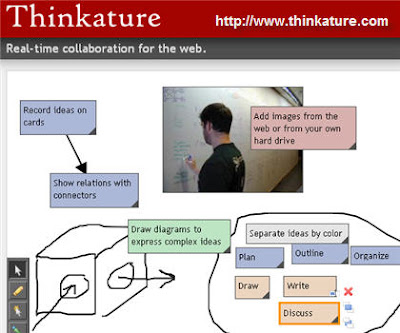
Thinkature

Thinkature - visual collaboration with drawings, outlines and short notes. Remember, not all good ideas arrive via words. Sometimes you have to show in order to tell.

Zoho Notebook - you can add video, photo or text to your Zoho Notebook and keep track of changes made to the project. Zoho has a whole range of free on-line applications such as word processing, wiki, e-mail client, planners and more.

WriteWith is specifically for team documentation. It allows you to set up your team members, the name of the document and the last update. Using WriteWith a team leader can send invitations to team members to review what you have written or edit and include a deadline.

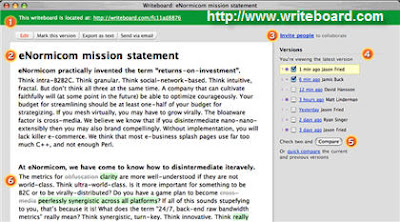
Writeboard CollaborationWriteBoard - Place your idea on the write board and have others edit what you have written. You can have a list of team members and you can view comments about the changes in the document.

When you have to get something done with a group of people and there is no time to meet in person then consider using one of these tools to meet and work in cyberspace.

As always, if you have questions please send them in the comments. The comments are moderated so it might take a while to check them out and get back to you.

Wednesday, 22 October 2008

RSS In Plain English - Captioned Version

For those of you that don't have audio, headphone or a decent audio card this is a captioned version of RSS in Plain English.


What that you say, you have a banana in your ear and still can't see the video. No problem. Here is a transcript:

Common Craft Presents...RSS in Plain English

The Internet has problems. Technorati says there are 50 million blogs, and you can see, it's going up. This is overwhelming. Today's show is about a new and efficient way to keep up...
...with all this cool stuff that's happening on the Internet.

so I'm going to talk about two ways that you can keep up with what's happening on the Web.
There's the old slow way - Boo!!! Then, there's the new and fast way - Yay!

Here's the difference between the new and the old way. This is you, and here are your favorite websites. You log on to your computer, and you're looking for something new. So you go out to your favorite blogs.Is there anything new there? No. You go out to your favorite news sites. Is there anything new? No.

Every time you look for something new and its not there, you've wasted valuable time.
This is the old way. Now, let's consider the new and fast way, ...which is simply taking these arrows...and turning them the other way.

This means the new things from blogs and new things from your news sites come to you instead.
It's like Netflix compared to going to the video store. So, what we're talking about is using a single website that becomes your home for reading......all the new stuff that's coming from your favorite websites.

There are two steps to getting started. The first step is you need a "home" for reading new posts. This is a website called a reader. It is free and all you need is an account. I use a site called Google Reader It looks like this...

My favorite sites are listed on the left...and on the right I can scroll through all the new posts from my favorite sites in a single place. So, to complete step one...
You need to go sign up for a reader. Google Reader, Bloglines, Newsgator and My Yahoo!
... are good places to start.

Step number two...is to set up a connection between your reader and your favorite websites.
Setting up these connections is called subscribing, and it's really important. Nearly every blog and news site offers the ability for you to subscribe...so updates in these sites show up here in your reader.

To set up these subscriptions, you just need to look for funny little icons. This is the standard one using the standard orange color. You may also see these.

These little icons say, "Hey look! Subscribe to me! I can save you time!" Once you find one of these buttons on your favorite site......click on it....and the page that appears will give you everything you need for subscribing.

After you click that button, one of two types of pages will appear. This is one that provides one click access to subscribing in your reader. The other page you're likely to see looks like this...
...with code on it.

If you see this page, copy the URL at the top of the page....go to your reader and look for a link that says "Add Subscription" or "Add Feed." Click on that, and paste the address into your reader. So, once you've added your subscriptions and the connection is there...
...new posts begin arriving in your reader...and you'll see why this is the new, faster way to read the web. It's addictive, so be careful!

So a quick recap. There are two things you need to do... Number one is go sign up for a reader.
Number two, go to your favorite websites... ...click on the icon and subscribe.

I'm Lee LeFever and this has been RSS in Plain English...on The Common Craft Show.

For more captioned videos you should visit DotSub

More Info On RSS Readers - Library 101 Presentation

In my presentation I mentioned that RSS stands for Really Simple Syndication. What that means is if you really like the blog and want to be alerted to new content you can copy a bit of code that will connect and keep you up to date with new content.

It is similar to a magazine subscription; you like the magazine and you want to receive it on a regular basis. Unlike magazines there is no fee involved and you can start and stop at any time.

Another way to look at it is there use to be three television networks that created content. After the program was canceled or finished its run it would go into syndication where other television stations could air the show when they wanted to show it to you. Most times it was 4:30a.m.

Instead of a company distributing the content when it wants to the user or patron gets to decide what content to received from millions of choices.

What You Need To Get Started

You will need to have what is called a RSS Reader. This is software that looks at the code, goes to the website or blog and transmits the new content to you. In class, I showed you Bloglines which is a free service that you can use to keep track of your favorite blogs, podcasts and web videos.

If you look at the bottom of the PCC Libtech blog you will see two buttons. One of them is for Bloglines. After you set up your account you can click that button and subscribe to the blog. The orange icon is another way to subscribe to content for other applications and services that use that format.

If you are a Google Guy/Gal no worries. If you use Google applications and services you just need to activate your Google Reader account. Google has a tour page that will explain the process.

Now I've tried to give a basic explanation but there a video that will make it crystal clear. Back in 2007 I wrote about the Common Craft videos and this is an example of my RSS In Plain English post from 2007. Definitely check the video out; it will help you understand and get you started building your link collections.

Monday, 1 September 2008

Big Huge Labs - Writer Text Editor

There is something to be said for simplicity. No bells or doo-dads to get in your way. Just a woman and her text editor. Text editor? Have I gone retro?

Writer Online Text Editor
Yes, I guess I have. For the moment anyway. I am not forsaking my word processing programs. But there are times when looking at a blank white screen is intimidating. I wander. I find things that I shouldn't be fooling with when I need to crank stuff out.

But for some reason gazing at a black screen with green type takes me back to the days when all I could do was type. And words starts to stream out of my left side of the brain.

Here are some of the advantages of using an on-line text editor:
  • You can use it anytime, anywhere that you are on the Internet.
  • For students it is a quick tool you can use to do research and copy citations and web addresses into the program.
  • It has a spell checker and a word counter.
  • Writer will allow you to save what you have written as a text file, or as a .pdf file. You can email it to yourself. I had a problem doing that. It never let me enter my email address.
  • It is free as in no cost to you. But if you really like it you can make a donation.
You can customize the type and the color. Green is not you thing, go old school Orange/Amber. So everything old is new again. Give it a try and see if it works for you.

Monday, 12 May 2008

Zotero - Reference Manager for Your Browser

Oh the joy, the rapture. I would have paid for it if I had know where to find it. Zotero, where have you been all my life? I learned about this little beauty from the InfoLit ListServ and I have plugged it in for immediate use.

Zotero is a reference manager add-in for Firefox, Netscape and Flock browsers. Yes, you Microsoft Internet Explorer folks are temporarily locked out of this goody. You add the plug in to your browser and then re-start.

You will be able to cite all kinds of material from just about anyway you travel on or off the Net. Books from WorldCat, MP3 and podcast, presentations, webcasts, journals, articles and more. You can copy and past your reference notes and export what you need as a RTF, HTML or even paper format. It is the merger of the best of the old reference techniques and new information management in one package.

All this and it is free.  Free and well documented. There is a demo on the front page that give an overview of the product. There is also a page of screencast tutorials that show you the basic function of how to use Zotero.

After losing all of my bookmarks/favorites not to mention the daily research I do just snooping around the Internet I needed a better way to log my travels. It is becoming increasingly important that we all have to start documenting our sources and find what we need quickly.  Not just for library staff but bloggers, writers, journalists or others who transfer thoughts to a fixed format.

I'm giving it a test run and if there are hick-ups I'll let you know but so far it is quarter past slick.

I feel you pain Mircrosofties so I'll see if I can find an equivalent product for you I.E. folks.

Wednesday, 16 April 2008

Free Introduction to WestLaw Class At Pasadena Central Library

Sarah Sabasteanski of the L. A. County Library will be teaching a free Introduction to WestLaw class. Class topics include locating legal forms, state and federal case law, court rulings and more.

The class will meet Wednesday, May 7 between 12:00 noon and 1:00pm. The class is located at the Pasadena (CA) Public Library, the Central branch on Walnut. To register visit the Pasadena Public Library Training page.

Saturday, 5 April 2008

EditGrid - Online Collaborative Spreedsheet

Picture this. You are working at a library that has Internet access but really old versions of Microsoft Office. Or you are working on a team project where you need data from a variety of people.

EditGrid Online Spreedsheet

Those people maybe in the same building, across the state or across the globe. You've got numbers to crunch. You have Microsoft Office, Open Office or access to Google Docs but you need to be able to collaborate with other folks entering information. Google Docs does have spreadsheet collaboration but does it do it in real time or with an Instant Messaging connection?

You might want to take a look at EditGrid. If you know Lotus 123 or Excel you can handle EditGrid. Now when you need to share spreadsheet info with team members it is a lot easier.
You can upload an existing spreadsheet or create one from scratch.

The neat part is the options that are available to users. You can:
  • Keep the spreadsheet private or set the viewing and participation rights to the spreadsheet
  • Use Instant Messaging to communicate inside of the EditGrid about the spreadsheet
  • Create a workspace for contributors for just their area of input.
If that wasn't enough they are working on a version of EditGrid that can be used on a iPhone.

So What Is the Catch?

The spreadsheets are hosted on EditGrid servers. If EditGrid goes out of business and you haven't saved a local copy then you could loose your work. But you know to save a backup copy of anything you can't afford to lose, right?

EditGrid has three user options. The free version is for home and personal professional use. There is a limit of a 2MB upload however you can have a many spreadsheets as you want. You still can share and make use of the live chat options.

The other versions, Subscription and Licensed are fee based but allow you to have access to more features like a custom log in page, connection behind firewalls and account administration.