Showing posts with label RSS. Show all posts

Friday, 5 November 2010

Bloglines Transfering Ownership to Merchant Circle

I received an e-mail from Bloglines/Ask.com informing me that they are transferring Bloglines to new owners MerchantCircle.com.

Per the Bloglines/Ask.com e-mail:
  • Ask.com will maintain the current Bloglines service as is until December 1, 2010. After December 1, 2010, the service will transition wholly to MerchantCircle. During the month of December, you will be able to easily port your feeds over to the MerchantCircle-powered service. It's an easy process, and we.ll provide you with complete instructions well in advance.
  • Logging-In: You will keep your same password as before.
  • Current Bloglines features: Your Bloglines subscriptions will seamlessly transition to the MerchantCircle service, however, the Clippings Tab will no longer be available and you will not be able to transport saved articles to the new service. We're very sorry for any inconvenience this will cause; the infrastructure requirements and costs are simply too great to justify maintaining this type of archiving feature.
MerchantCircle is a directory of small and local businesses. The company offers services to those vendors such as advertising placement, web directories, web site hosting and other similar services.

I am really not clear on how this is going to be a good match. The general focus of MerchantCircle is to attract small business owners to help them connect with customers. Nothing wrong with that; support your local businesses when possible.

I have to be honest. When I did use Bloglines it was not to shop. It was to connect with those sites and blogs I needed to track or visit. I'm not totally opposed to ads that support a web business. I'm just not sure how these two different kinds of web services are going to mesh with each other.

My main concern is that I don't want my contact info transferred to vendors without my explicit permission. If I don't like it I want an easy Opt-Out process.

For more info you can visit the MerchantCircle blog or e-mail your questions.

Wednesday, 1 September 2010

The Library Tech Blog Now Posts to the Library's Facebook Page

If you haven't already, check out the Shatford Library's Facebook page. Be sure to "like" the library's page to get all of our latest news. The Library Technology Blog is now linked to the Shatford Library's Facebook page, so updates will automatically appear there, too! If you don't see the updates on the wall, try clicking on the "Notes" tab. We hope to see you on Facebook!

Monday, 2 March 2009

Track Library Jobs Using RSS and Google Reader

This is another way to subscribe to LISJobs via RSS but this time using Google Reader. The concept is the same as with Bloglines but for some folks it might be much easier. Or not.

Step 1 - Getting the RSS feed from LISJobs

You can move you mouse pointer on top of the hyperlink address. This link contains the actual code that you can copy into Google Reader or any RSS Reader.

LISJobs RSS Link

It looks like http://www.lisjobs.com/rss.asp and you can see it at the bottom of your browser window. The RSS in the web address tells the RSS Reader where to find the RSS feed code for the website or blog.

Step 2 - Copy The RSS Feed Code

The next step is to copy the RSS Feed Code. For Windows and Linux users click your second mouse button to bring up the context menu. You want to select "Copy Link Location."

Copy Link Location Menu
Macintosh users, I confess it has been awhile since I've touched a Mac; I think you have something similar, either by mouse or a keyboard function.

Step 3 - Google Reader

Next, glide over to Google Reader. If you have a Google account you can go to your subscription page. At the top of the page is the Add A Subscription button.

Google Subscription

Step 4 - Add The Subscription

Click that button and you will see the image below. You can paste the code in the box. Now if the website or blog only has one feed you can type in the web address and Google Reader will find the RSS code for you.

Add Feed Area There are some websites that have multiple RSS feeds for various areas of interest. I think it is better just to get the feed that you want as oppose to having Google Reader ferret out a bunch of them.

The lamb has shaken his tail and this is what you should see:


Sucessfull Message
You now can track the job positions from a centralized place. You can customize Google Reader to show you the entire post or just show you the titles that will link back to the original site.

So it doesn't matter if you are at home, school or in the library you can track potential job listings from a number of sources. This can save you time and frustration. Good luck and on with the search!

Sunday, 1 March 2009

Track Library Jobs Using RSS and Bloglines

We need work. What good is technology if it does not serve your immediate or long term needs? There are websites and blogs that list library jobs. You can visit each and everyone of them but there might be a better way.

RSS stand for Really Simple Syndication. If you done know about RSS check out my post with a captioned video "RSS in Plain English by Common Craft. It does are really good job of explaining what RSS is and how you can use it.

This is an example of how to subscribe to an RSS feed and have it show up in your Subscription list aka news aggregator or RSS Reader. Many of you are familiar with Bloglines, some of you use Google Reader or My Yahoo for your online aggregator. At home, I also use the RSS Reader that is included in my e-mail program, Thunderbird.

I don't care what you use so long as you have a means to subscribe to blogs, websites and other forms of online content. For this example, I'm using Bloglines because it is bone simple to use.

Step 1 - Subscribing To LISJobs

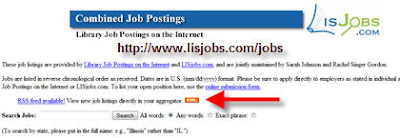
You can visit LISJobs and see the current job listings. Or, you can have those same listings come to you.

LISJobs
When you want to subscribe you are looking for an orange button with the letters "XML" or "RSS". It can also look like a broadcast symbol which you will see in the next photo. On other websites it does not have to be orange or have those letter but that is the most common way of indicating that this is a subscription feed. For this particular website, click the button.

Step 2 - Subscribe Options

You have options. If you use Live Bookmarks it will direct your feed there. If you subscribe via another service not listed or you have an RSS on your computer you can make that selection as well.


Subscription Page
I like Bloglines because I can access it at home or when I am at a conference or giving a demonstration. I moved my mouse pointer to Bloglines, and it will take me to the Bloglines web site.

Step 3 - Bloglines Subscription Page

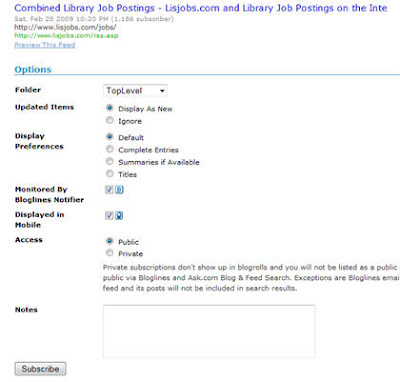
Now you will probably have to log in to Bloglines before you get to this page. This is the screen where you confirm the site that you want to subscribe. You can customize how you want to see your listings. You have the option of just the titles or looking at the full post. You can also tell it to send it to your cell phone, PDA or iPhone.

Bloglines Subscription PageWhen you are ready click the subscribe button.

Step 4 - Added To Bloglines

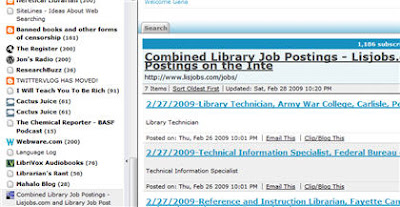
Bloglines will add it to your list of blogs and websites that you are tracking. On the right is the titles of the posts.

Successful Addition to Bloglines
This is not the only way to subscribe to RSS feeds. If you know how you can copy and past the code directly into your RSS Reader. I'll show you how to do that in the next post.

Many websites and blogs have subscription button for Bloglines, Google Reader and dozens of other services. You just have to click the button of your choice and it will take you to your subscription page.

Now is not the time for techno wimps. We really do need to use all tools at our disposal. It is free and other job seekers are doing it. Shouldn't you?

Wednesday, 22 October 2008

RSS In Plain English - Captioned Version

For those of you that don't have audio, headphone or a decent audio card this is a captioned version of RSS in Plain English.


What that you say, you have a banana in your ear and still can't see the video. No problem. Here is a transcript:

Common Craft Presents...RSS in Plain English

The Internet has problems. Technorati says there are 50 million blogs, and you can see, it's going up. This is overwhelming. Today's show is about a new and efficient way to keep up...
...with all this cool stuff that's happening on the Internet.

so I'm going to talk about two ways that you can keep up with what's happening on the Web.
There's the old slow way - Boo!!! Then, there's the new and fast way - Yay!

Here's the difference between the new and the old way. This is you, and here are your favorite websites. You log on to your computer, and you're looking for something new. So you go out to your favorite blogs.Is there anything new there? No. You go out to your favorite news sites. Is there anything new? No.

Every time you look for something new and its not there, you've wasted valuable time.
This is the old way. Now, let's consider the new and fast way, ...which is simply taking these arrows...and turning them the other way.

This means the new things from blogs and new things from your news sites come to you instead.
It's like Netflix compared to going to the video store. So, what we're talking about is using a single website that becomes your home for reading......all the new stuff that's coming from your favorite websites.

There are two steps to getting started. The first step is you need a "home" for reading new posts. This is a website called a reader. It is free and all you need is an account. I use a site called Google Reader It looks like this...

My favorite sites are listed on the left...and on the right I can scroll through all the new posts from my favorite sites in a single place. So, to complete step one...
You need to go sign up for a reader. Google Reader, Bloglines, Newsgator and My Yahoo!
... are good places to start.

Step number two...is to set up a connection between your reader and your favorite websites.
Setting up these connections is called subscribing, and it's really important. Nearly every blog and news site offers the ability for you to subscribe...so updates in these sites show up here in your reader.

To set up these subscriptions, you just need to look for funny little icons. This is the standard one using the standard orange color. You may also see these.

These little icons say, "Hey look! Subscribe to me! I can save you time!" Once you find one of these buttons on your favorite site......click on it....and the page that appears will give you everything you need for subscribing.

After you click that button, one of two types of pages will appear. This is one that provides one click access to subscribing in your reader. The other page you're likely to see looks like this...
...with code on it.

If you see this page, copy the URL at the top of the page....go to your reader and look for a link that says "Add Subscription" or "Add Feed." Click on that, and paste the address into your reader. So, once you've added your subscriptions and the connection is there...
...new posts begin arriving in your reader...and you'll see why this is the new, faster way to read the web. It's addictive, so be careful!

So a quick recap. There are two things you need to do... Number one is go sign up for a reader.
Number two, go to your favorite websites... ...click on the icon and subscribe.

I'm Lee LeFever and this has been RSS in Plain English...on The Common Craft Show.

For more captioned videos you should visit DotSub

More Info On RSS Readers - Library 101 Presentation

In my presentation I mentioned that RSS stands for Really Simple Syndication. What that means is if you really like the blog and want to be alerted to new content you can copy a bit of code that will connect and keep you up to date with new content.

It is similar to a magazine subscription; you like the magazine and you want to receive it on a regular basis. Unlike magazines there is no fee involved and you can start and stop at any time.

Another way to look at it is there use to be three television networks that created content. After the program was canceled or finished its run it would go into syndication where other television stations could air the show when they wanted to show it to you. Most times it was 4:30a.m.

Instead of a company distributing the content when it wants to the user or patron gets to decide what content to received from millions of choices.

What You Need To Get Started

You will need to have what is called a RSS Reader. This is software that looks at the code, goes to the website or blog and transmits the new content to you. In class, I showed you Bloglines which is a free service that you can use to keep track of your favorite blogs, podcasts and web videos.

If you look at the bottom of the PCC Libtech blog you will see two buttons. One of them is for Bloglines. After you set up your account you can click that button and subscribe to the blog. The orange icon is another way to subscribe to content for other applications and services that use that format.

If you are a Google Guy/Gal no worries. If you use Google applications and services you just need to activate your Google Reader account. Google has a tour page that will explain the process.

Now I've tried to give a basic explanation but there a video that will make it crystal clear. Back in 2007 I wrote about the Common Craft videos and this is an example of my RSS In Plain English post from 2007. Definitely check the video out; it will help you understand and get you started building your link collections.